



Wink: Video Enhancer & Editor
How to Use Wink App Full Tutorial
Wink is a powerful AI-driven video editing app that helps users enhance, edit, and transform their videos effortlessly. Whether you’re a beginner or an advanced user, this 1,000+ word guide will walk you through every feature, from basic trimming to AI-powered enhancements.
- Introduction to Wink: Video Enhancer & Editor
Wink is designed for mobile users who want professional-quality video edits without complex software. It offers:
AI-powered enhancements (upscaling, stabilization, noise reduction)
Advanced editing tools (transitions, filters, speed control)
Creative effects (background removal, text animations, stickers)
Easy exporting (multiple resolutions, direct social media sharing)
This guide will cover everything from installation to exporting high-quality videos.
- Downloading & Setting Up Wink
Step 1: Installing the App
For iOS: Available on the App Store.
For Android: Download from Google Play.
APK Option: If unavailable in your region, download from the official website.
Step 2: Permissions & Initial Setup
Allow access to:
Camera (for recording videos directly).
Microphone (for voiceovers and audio editing).
Storage (to import and export videos).
Sign in (optional) to save projects to the cloud.
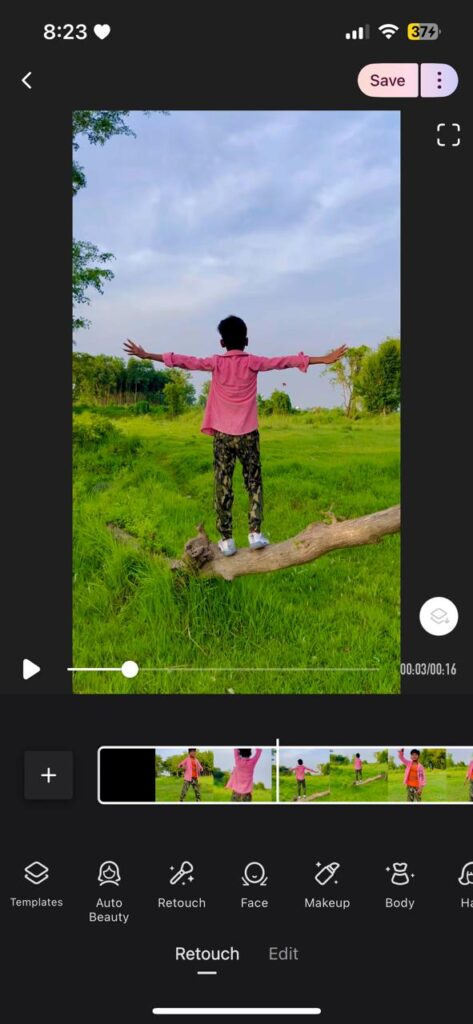
Step 3: Understanding the Interface
Home Screen: Shows recent projects and quick-start options.
Editor: Timeline-based workspace with tools at the bottom.
Preview Window: Displays real-time edits.


- Importing & Basic Video Editing
Step 1: Starting a New Project
Tap “New Project” → Select videos from your gallery.
You can choose multiple clips for a multi-track edit.
Step 2: Trimming & Cutting Clips
To trim: Drag the edges of a clip in the timeline.
To split: Move the playhead to the desired point → Tap the scissors icon.
Step 3: Adjusting Playback Speed
Select a clip → Tap “Speed” → Choose:
0.1x to 1x (slow motion).
1x to 10x (fast motion).
Pro Tip: Speed ramping (gradual speed changes) is possible by splitting and adjusting speed per segment.
Step 4: Adding Transitions
Tap the transition icon (⧉) between clips.
Choose from:
Fade, Slide, Zoom, Blur, Glitch, and more.
Adjust duration for smoother effects.
- AI-Powered Video Enhancements
Step 1: Auto-Enhance (One-Click Fixes)
Tap “Enhance” → AI automatically improves:
Brightness & contrast (fixes dark footage).
Stabilization (reduces shakiness).
Noise reduction (cleans up grainy videos).
Step 2: Upscaling Video Quality (HD & 4K)
Go to “Tools” → “Upscale” → Select 1080p or 4K.
Works best for low-resolution videos (e.g., old phone recordings).
Step 3: Background Removal & Replacement
Tap “Effects” → “Background” → Choose:
Blur (bokeh effect).
Solid Color (green screen-style).
Custom Image/Video BG (replace with any background).
- Advanced Editing Features
Step 1: Adding Text & Subtitles
Tap “Text” → Enter your caption.
Customize:
Font, size, color, and alignment.
Animations (fade-in, typewriter, bounce).
Timing (set when text appears/disappears).
Step 2: Music & Sound Effects
Tap “Audio” → Add:
Background Music (from the app’s library or your files).
Voiceovers (record directly in the app).
Sound Effects (applause, swooshes, etc.).
Adjust volume levels to balance audio.
Step 3: Filters & Color Grading
Tap “Filters” → Choose from presets:
Cinematic, Vintage, Noir, Vivid, etc.
For manual adjustments, use “Color Adjust”:
Brightness, Contrast, Saturation.
Shadows, Highlights, Temperature.
Step 4: Keyframe Animations (Advanced Motion Effects)
Select a clip → Tap “Keyframes” → Set start/end points for:
Zooming in/out.
Panning (left/right movement).
Opacity changes (fade effects).
- Exporting & Sharing Your Video
Step 1: Choosing Export Settings
Tap “Export” → Select:
Resolution: 480p, 720p, 1080p, or 4K.
Frame Rate: 24fps (cinematic), 30fps (standard), or 60fps (smooth).
Format: MP4 (recommended), MOV, or GIF.
Step 2: Saving & Sharing
Save to Gallery (for later use).
Share directly to Instagram, TikTok, YouTube, WhatsApp, etc.
Pro Tip: Use “Custom Export” for higher bitrate (better quality).
- Bonus Tips & Tricks for Professional Edits
✅ Use Templates – Pre-made styles for quick edits.
✅ Batch Processing – Enhance multiple videos at once.
✅ Green Screen Effect – Use background removal for professional overlays.
✅ Cloud Backup – Save projects to avoid losing progress. - Troubleshooting Common Issues
❌ App Crashes? → Clear cache or reinstall.
❌ Export Fails? → Reduce resolution or trim video length.
❌ AI Enhance Not Working? → Ensure original video has decent lighting.
❌ Audio Sync Issues? → Manually adjust clip timing. - Final Thoughts
Wink is one of the best mobile video editors for quick fixes and professional-level enhancements. With AI tools, advanced effects, and easy exporting, it’s perfect for:
Social media content creators.
Vloggers & YouTubers.
Businesses making promo videos.
By following this guide, you can master Wink and create stunning videos in minutes! 🚀
Would you like a video tutorial on any specific feature? Let me know! 😊